Sisu - Study plan
As a degree student, your studies include creating a personal study plan (PSP). The PSP is an ongoing process throughout your studies that helps you plan your studies and monitor your progress.
Your study plan in Sisu includes all the compulsory courses in your degree programme as well as your elective studies. In your elective studies, you may choose studies suitable for your degree from courses offered by LAB University of Applied Sciences, LUT University, or another Finnish higher education institution. You can also include studies you are planning to complete during an international exchange.
The study plan does not need to be completed all at once. You can update your plan as your studies progress.
Through your PSP, you can register for courses and easily follow how your studies are advancing.
- To start planning your studies, log in to Sisu system at https://sisu.lab.fi by using your LAB student account credentials.
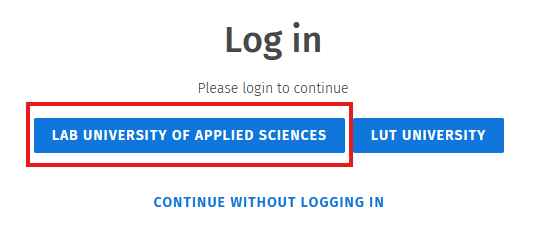
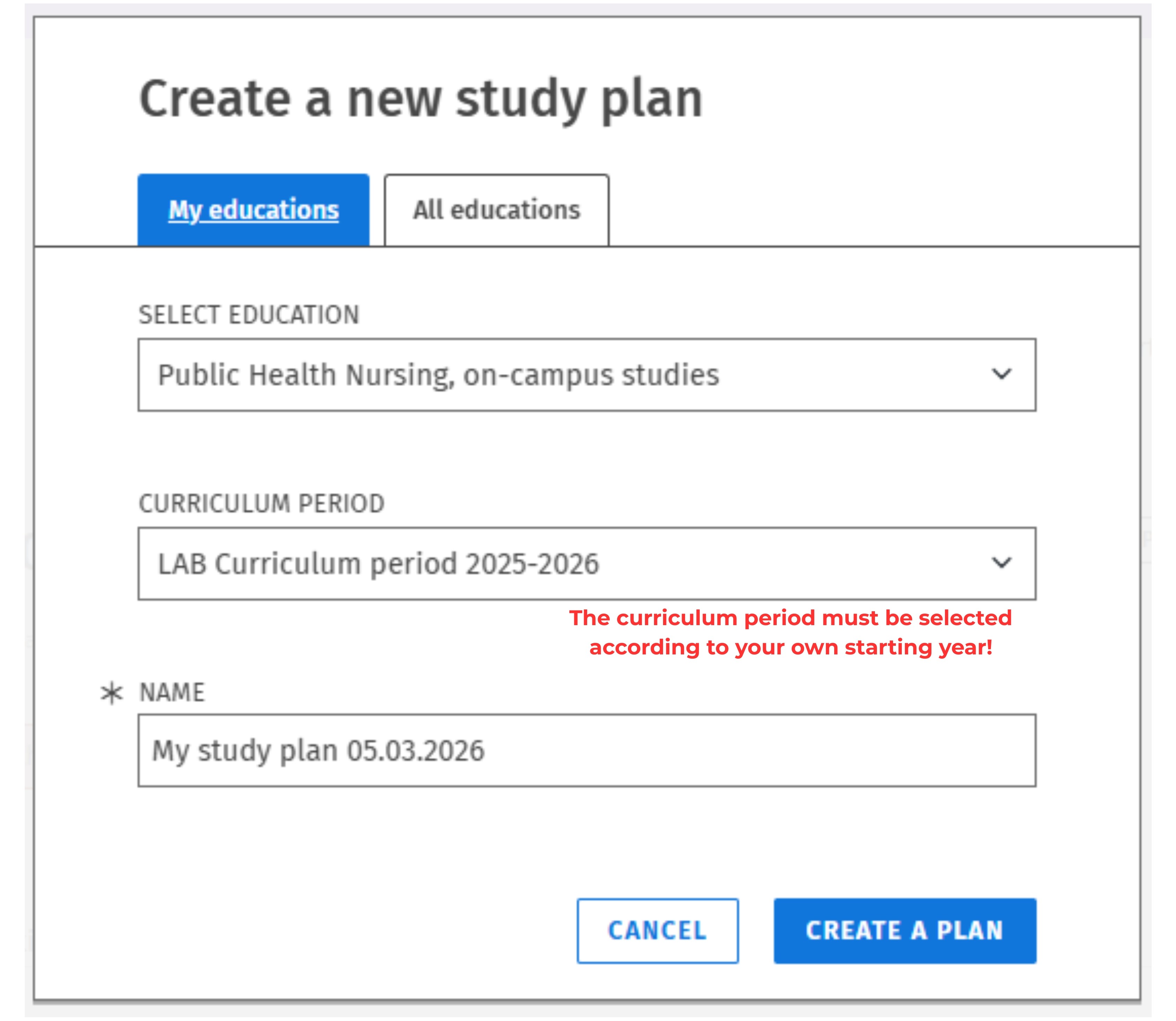
2. When logging in for the first time Sisu prompts you to create a new study plan by going to the Structure of studies tab. A new study plan is created for the first time in the Create a new study plan popup that opens up when clicking onto the Structure of studies tab.
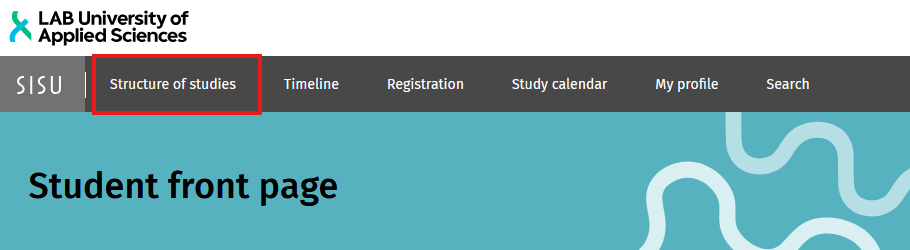
If you already have a study plan and you wish to create another, this is done by clicking the New study plan button at the top left corner of the Structure of studies tab. The My educations tab will offer study plan structures corresponding to your study right(s).
The system automatically suggests you create your study plan for the ongoing curriculum period.
Sisu names the study plan automatically according to its creation date. You can change the plan’s name if you wish. The name of the study plan is visible to your tutor teachers.
Finally, select Create a plan.
The first study plan you create is automatically the primary plan.
NOTE! When creating your first study plan, select the curriculum period according to the start year of studies.
- Example 1: If you started your studies in autumn 2024, select the curriculum period 2024–2025.
- Example 2: If you started your studies in January 2025, select the curriculum period 2024–2025.
- Example 3: If you were registered as absent at the beginning of your studies due to statutory reasons, select the curriculum period that corresponds to when you actually start your studies.
- Example 4: If you are absent in the middle of your studies, select the curriculum period based on your original start date when you continue your studies.
NOTE FOR PATHWAY (POLKU) STUDENTS: The study plan curriculum period must be selected based on the year you started your studies as a degree student!
3. After creating your study plan, Sisu will open a view where you can edit your study plan.
4. You can create more than one study plan in Sisu, but only one of them can be set as primary. You can register for courses only through your primary study plan.
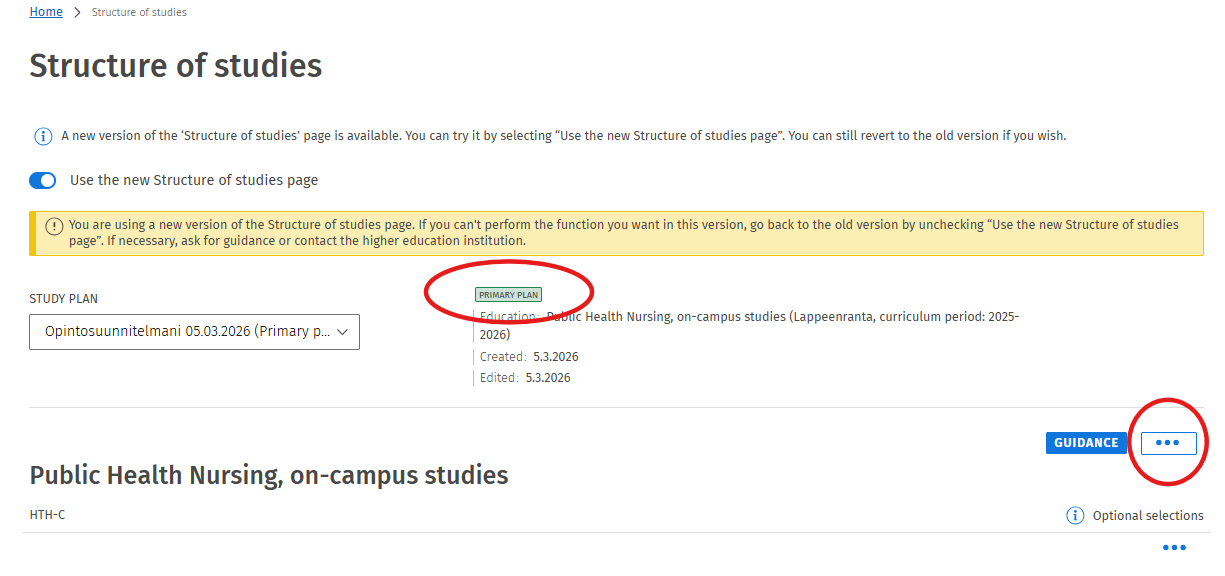
Make sure that your study plan is marked as Primary study plan (see image below).
If needed, you can set a study plan as primary by clicking the three-dot icon on the right and selecting Set as primary from the drop-down menu.
5. After creating your study plan, you can check whether all required study selections have been made. See the instructions below on how to make selections in your study plan.
Your study plan consists of core competence and complementary competence.
Structure
In Sisu, a default structure has been created for each degree programme, and it is displayed in your study plan. The study plan consists of Core Competence and Complementary Competence. These sections contain smaller study modules and various selection menus.
Core competence
The Core Competence section of your degree programme consists of:
Mandatory study modules and courses, which are automatically shown in your study plan. You do not need to search for or add these studies yourself.
Optional selections, which are included in some degree programmes. These choices must be made from the options provided. Examples include certain language studies and possible specialisation options.
Complementary competence
You can add Supplementary Competence studies under the existing study modules in the structure.
To do this, open the selection assistant by clicking the three-dot menu next to the appropriate heading. You can then search for courses or study modules by their name or code.
Learn more:
- The structure of complementary competence in Bachelor’s degree programmes (instructions and link coming soon)
- The structure of complementary competence in Master’s degree programmes (UAS) (instructions and link coming soon)
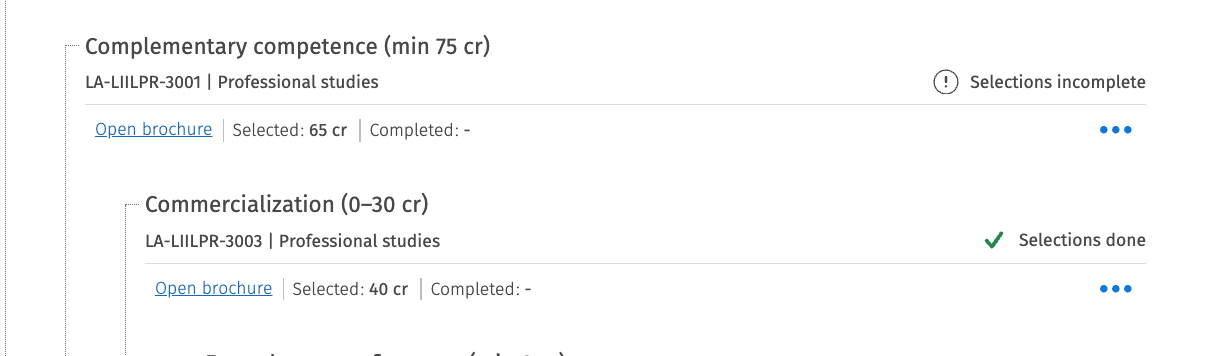
Once you have selected a sufficient number of studies, the message “Selections done” will appear in the selection assistant as well as on the row of the relevant module or heading in your study plan.
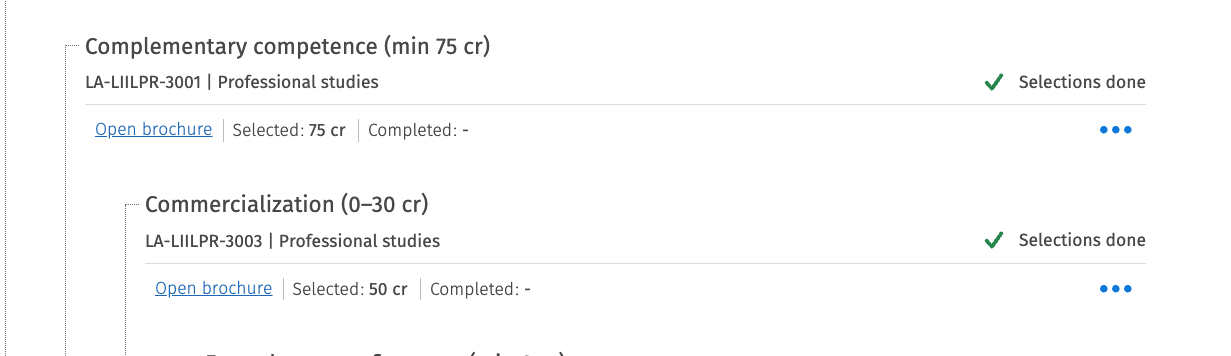
You don’t need to finish your study plan all at once. You can update and adjust it as your studies progress.
Study draft
Students can add their own study drafts with a custom subject and number of credits into their study plan structure. Study drafts can be used to plan, indicate and suggest studies or other experience completed outside LAB to be included in the degree structure (e.g. exchange studies, internships..).
Modifying Core Competence Studies
Each student's study plan is personal, which means that almost every student will have some differences compared to the default structure of their degree programme.
If you encounter such a situation and need to modify the study modules within your mandatory studies, you can do so in Free Edit Mode, where you can:
- add courses
- create and add study drafts
- remove courses from your study plan
If you make selections that different from the default degree programme structure, Sisu will display a notification.
These notifications have different meanings. The most common ones are:
- Against the rules: Your study plan does not comply with the default structure of your degree programme.
- Requires separate approval: You have added studies to a section that requires separate approval from your tutor teacher or programme coordinator.
- Not included in the education structure: You have added studies to the Core Competence section that are not originally part of the degree programme structure.
Deviating selections can be included in your study plan, but this requires applying for module content approval (see instructions: Free Edit Mode).
When Is Approval of Exceptional Module Content Needed?
In some situations, you may also need to apply for module content approval when submitting other study plan applications. Examples include:
- a credit substitution application
- a custom course attainment application
- a personal course completion application or a study draft application
These applications may result in study plan choices that are different from the default degree structure and therefore require separate approval.
Removing Complementary Competence Study Selections from Your Study Plan
To remove a course from your study plan, first click the heading under which the course is located. Open the Selection Assistant from the three-dot menu. The courses you have selected will be displayed in a list. Optional courses can be removed directly in the Selection Assistant by deselecting the course and saving the change.
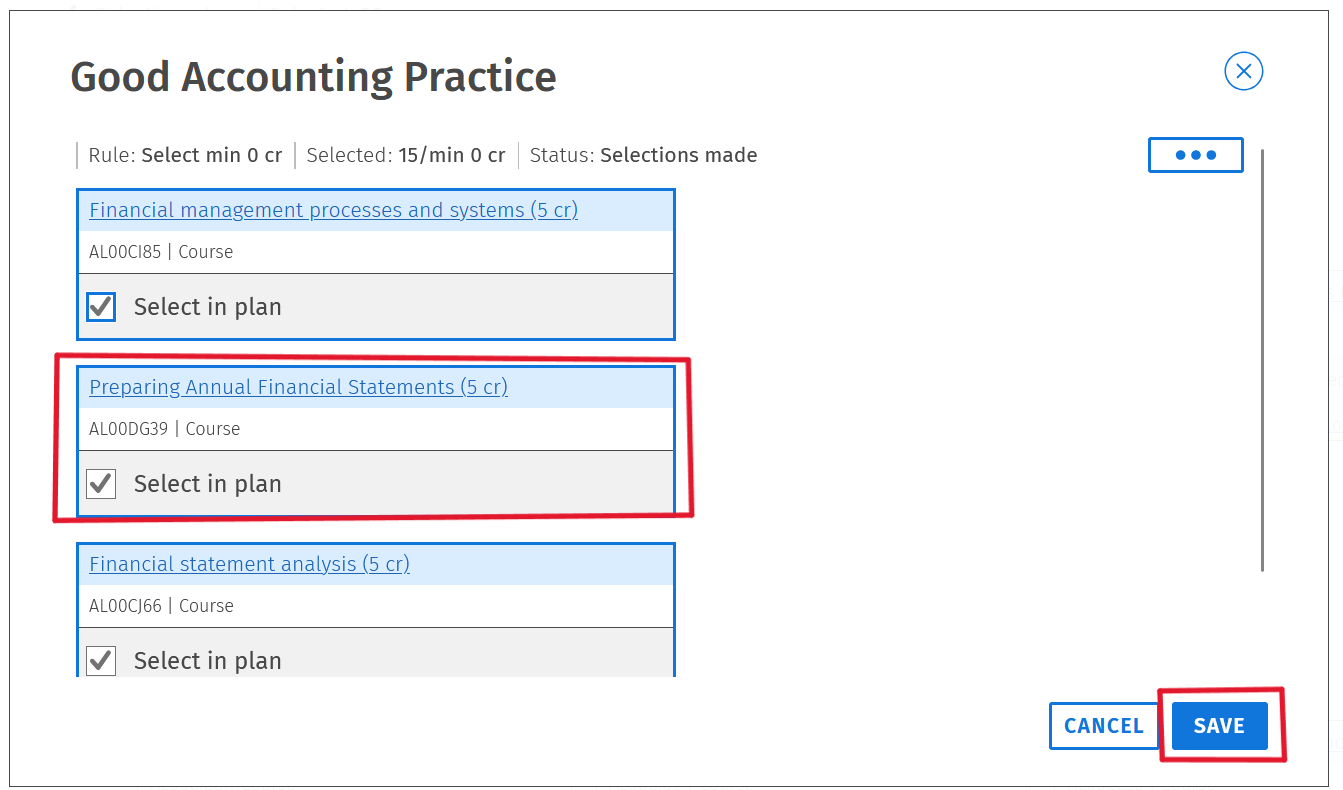
Please note: Whenever you make changes to the structure of your study plan, you must reapply for approval of those changes if the modification requires separate approval.
Before submitting a new application, remember to first withdraw your previous application and then apply for a new approval for the study module reflecting the updated changes.
In Sisu, you can ask for guidance related to your structure of studies from your tutor teacher by clicking the Guidance button at the upper right corner of their study plan.
You can request a comment, for example, on a specific module (a targeted comment) or on the entire study plan (a general comment).
The messaging feature will become available in August 2026.
Learn more: Guidance and commenting on the study plan (page and link coming soon)
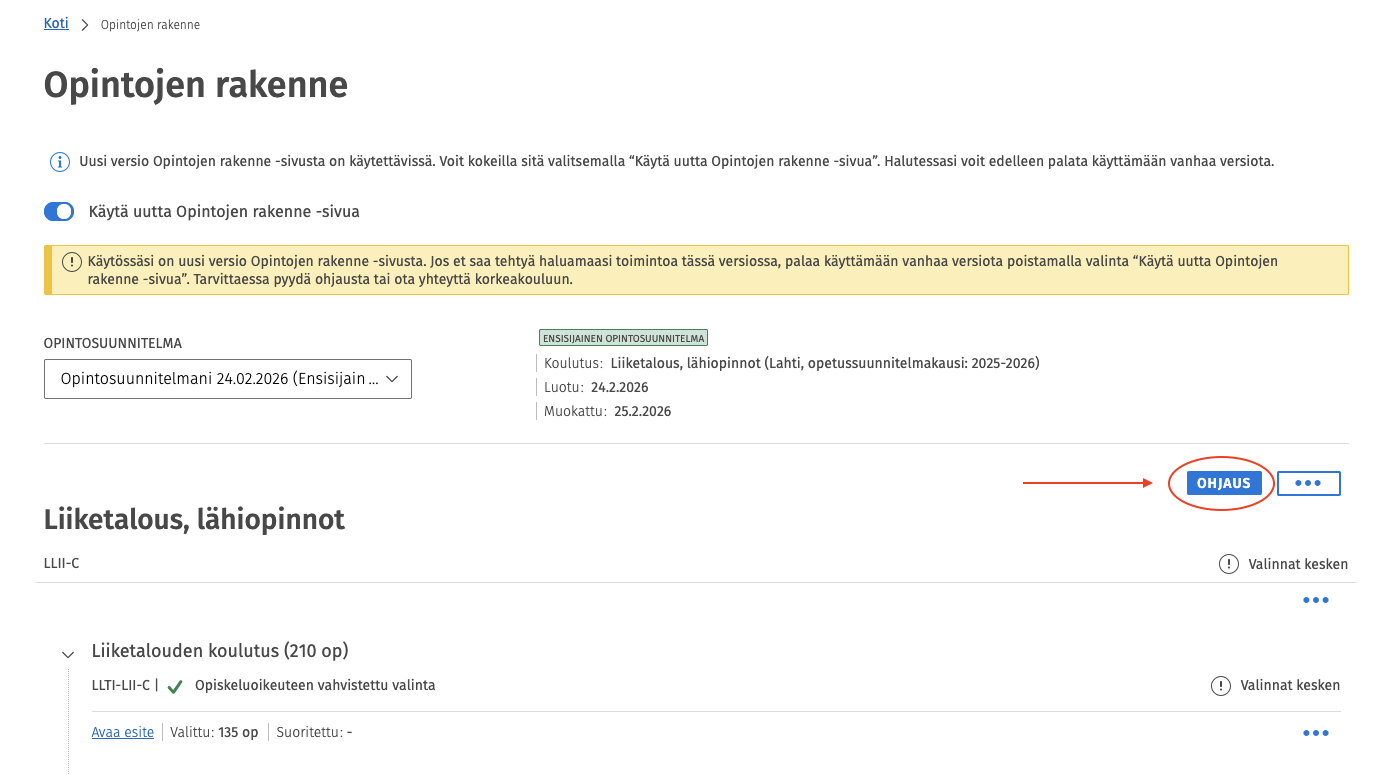
If you created your study plan early in the spring, changes may have been made to the degree programme structure since then. As a result, your study plan can show red error messages or notifications indicating that certain studies do not fit the degree structure. In this situation, it is often best to create a new study plan and delete the old one. This is usually the easiest way to resolve structure-related issues.
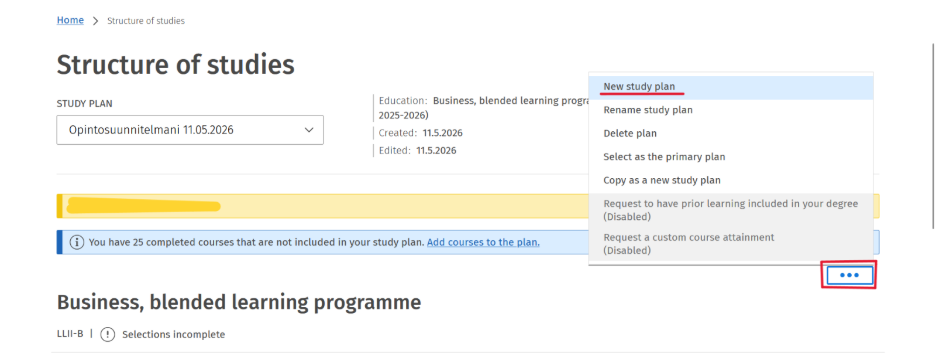
Go to the Structure of Studies -tab and click the three dots in the upper-right corner. Then select New Study Plan.
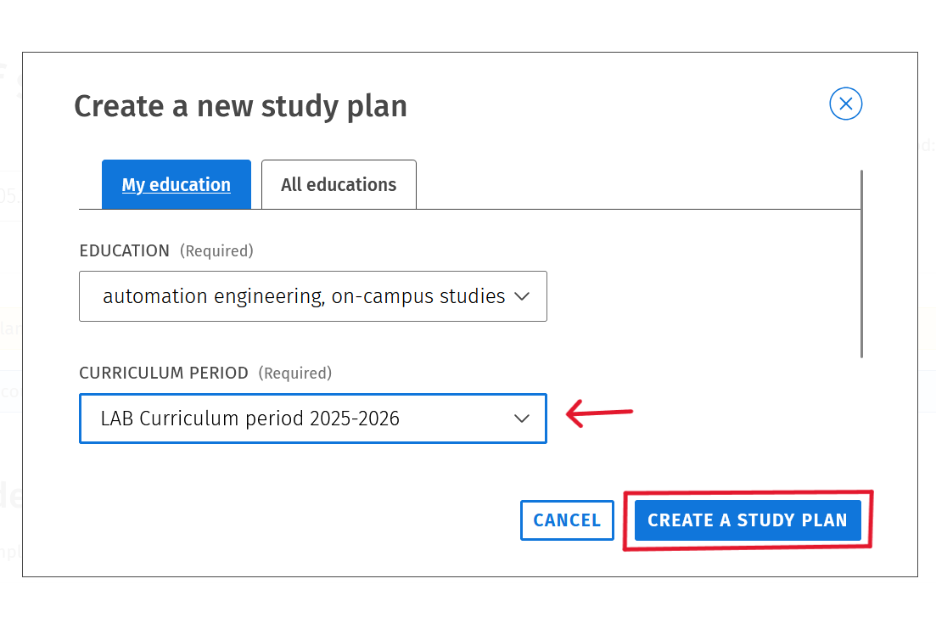
You will be taken to the Create a New Study Plan page. Select the correct education programme (in most cases, there is only one option) and choose the right curriculum period based on the year you started your studies. Finally, click Create a Study Plan.
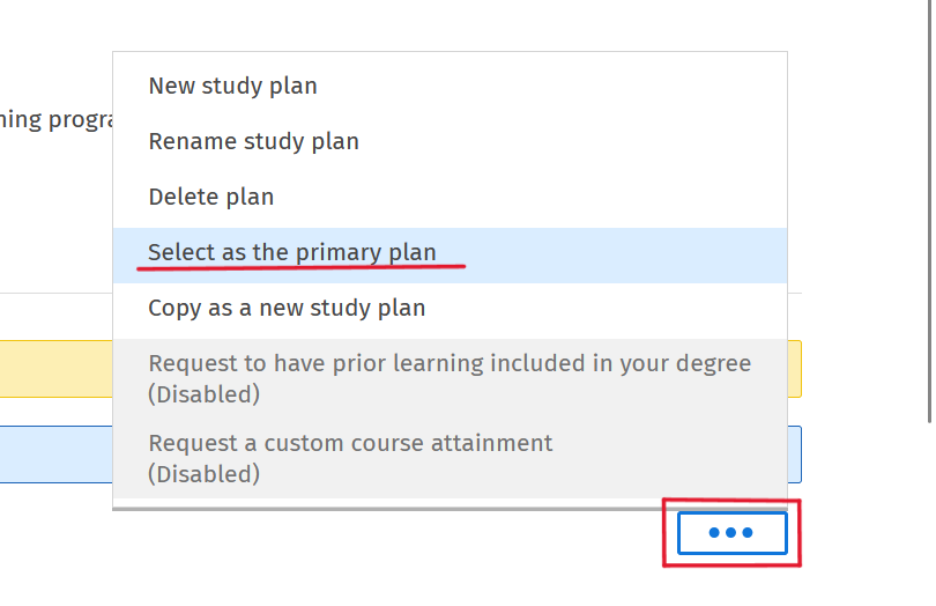
You have now created a completely new study plan. Next, set this new study plan as your primary study plan. Click the three dots again and select Select as the new primary plan.
Your study plan has become the primary study plan when the label Primary Plan appears at the top of the page. Go to your old study plan using the study plan list on the left-hand side, where you can browse all your study plans, select the old one.
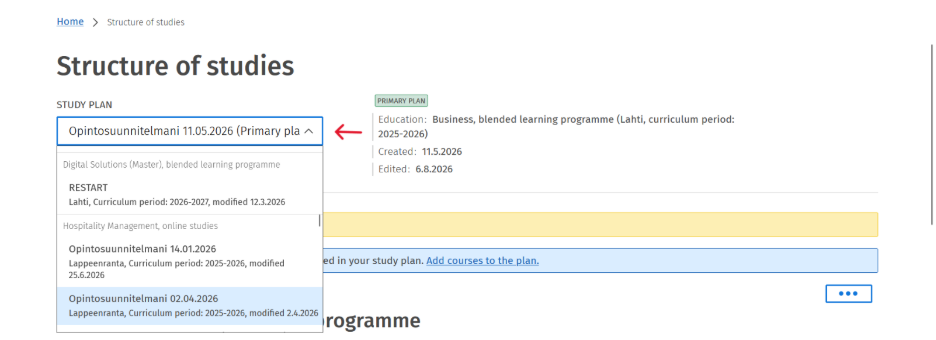
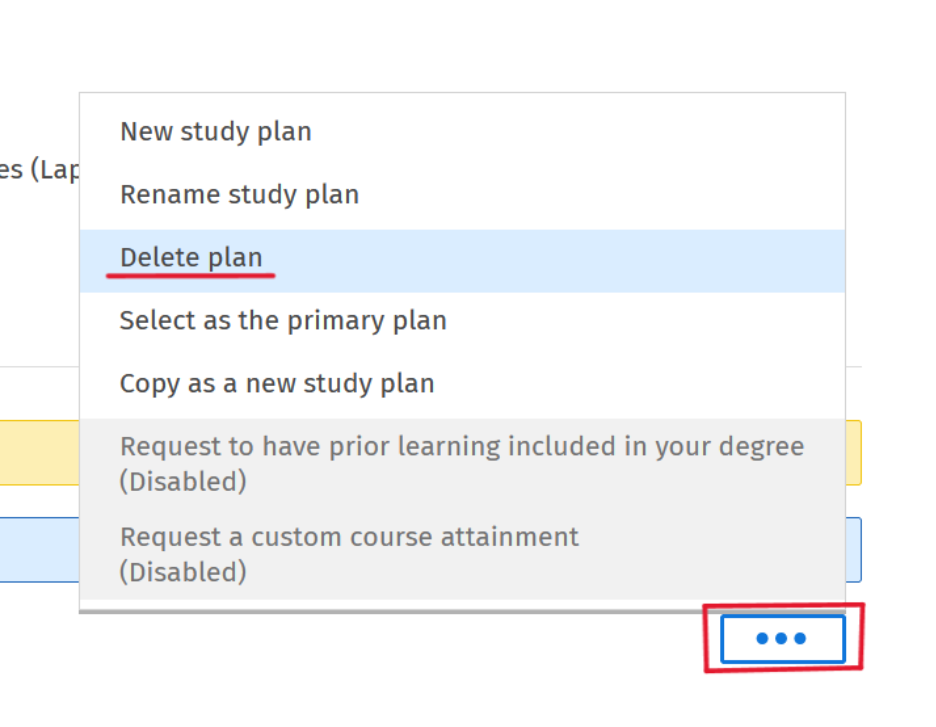
In the old study plan view, click the three dots menu and select Delete Study Plan.
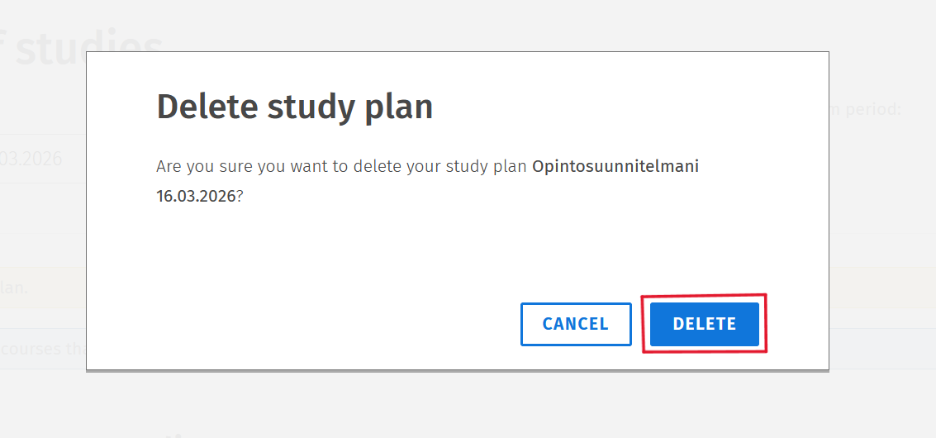
Next, click Delete. After that, you will only have one study plan remaining: the new, updated study plan you have just created.
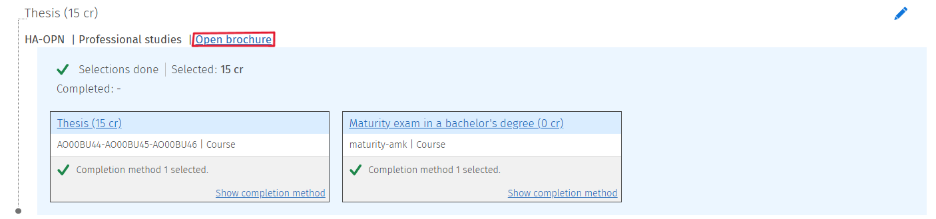
In some cases, you may be asked to update the study module version so that changes made to the module in your degree programme are also shown in your study plan. If you are still working on your thesis, you need to update the thesis study module in your study plan following these instructions. Once it has been updated, you will be able to register for your thesis.
Select Open brochure for the Thesis study module.
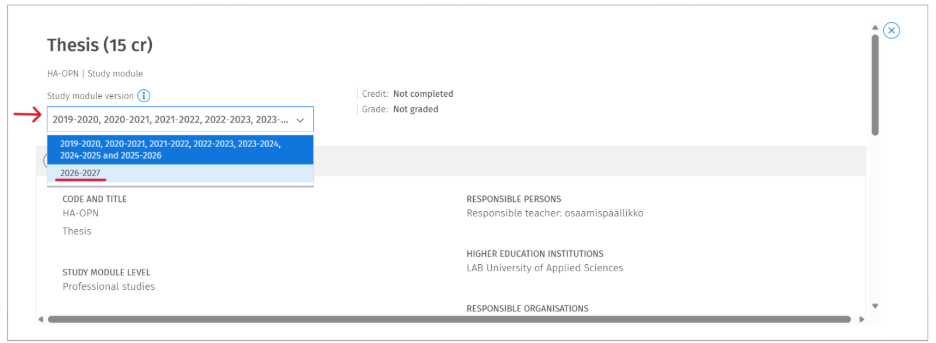
Next, select the latest available version from the Study Module Version section (2026–2027).
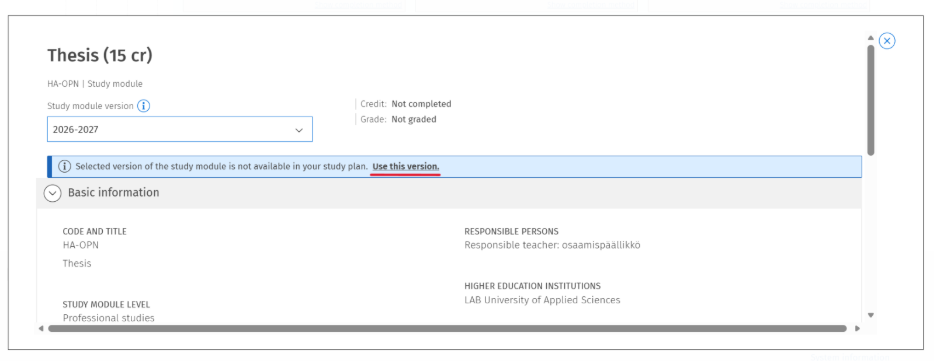
After selecting the latest version, confirm the update by selecting Use this version.
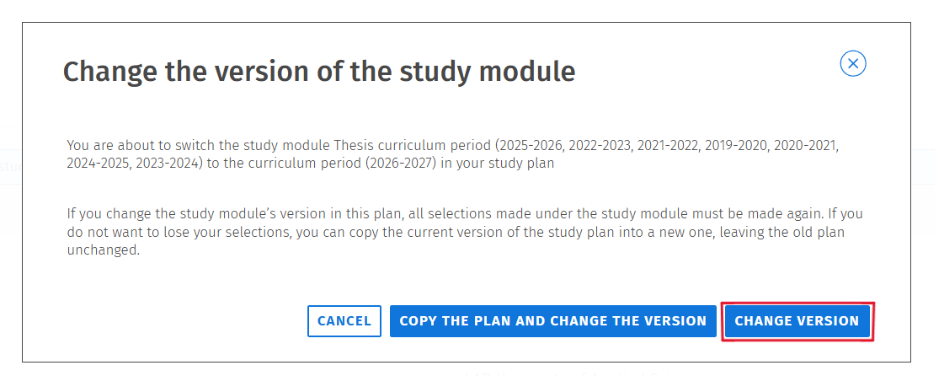
Next, confirm the version change by selecting Change version, the new version will then be automatically updated in your study plan. After this, you can register for the thesis implementations as usual.
If you have any difficulties or questions regarding enrolment in course implementations (for example: the Thesis, Practical Training, or Orientation to Sustainability Thinking course), please refer to the instructions below: Sisu Registration.
Especially before applying for graduation, make sure that all credits required for your degree are included in your study plan and that your study modules are complete. The statuses displayed in your study plan and their meanings are explained below.
Selections Completed
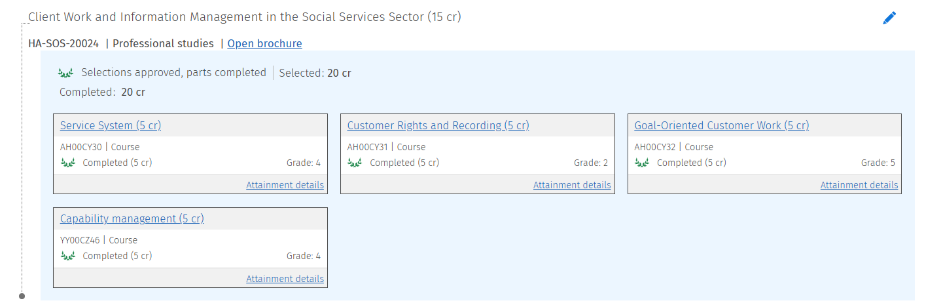
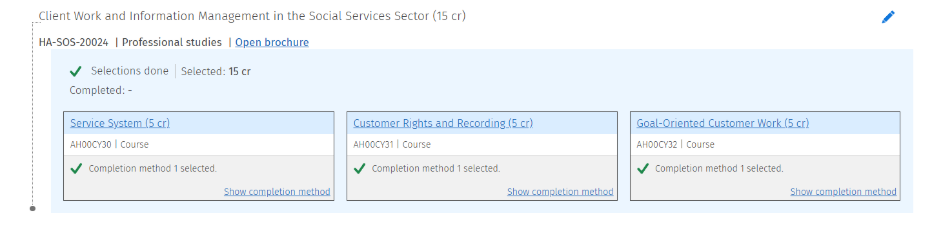
First, make sure that you have selected enough credits in your study plan. You can check the required number of credits in the title of each study module (for example: Client Work and Information Management in the Social Service Sector, 15 cr). When a study module contains enough selected studies, the status "Selections done" will appear. This status indicates that the required number of studies has been selected for the module. It does not mean that the studies have been completed. Only the necessary study selections have been made.
Components Completed
If no changes have been required to the study module and all required credits have been completed, the module status will automatically update to "Parts completed". At the same time, a green leaf icon will appear next to the study module, indicating that the module is complete. Before applying for graduation, a green leaf icon should be visible next to every study module in your study plan.
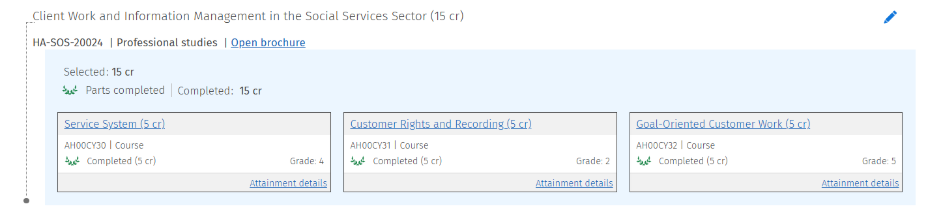
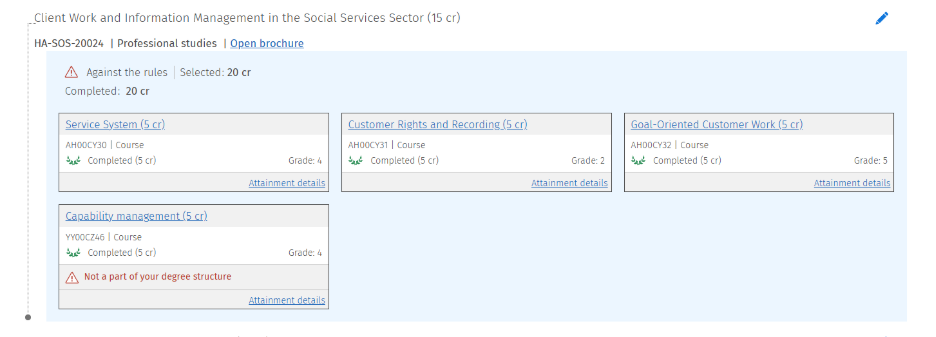
Free Edit Mode and Against the rules
Sometimes changes need to be made to your study plan, and completed studies may need to be placed or moved to the correct location in Free Edit Mode. Courses must be added to the part of the study plan where they belong according to the degree structure.
If your study plan displays the status "Against the rules" or "Not a part of your degree structure", this does not necessarily indicate an error. These statuses mean that the change differs from the original degree structure. In such cases, you must apply for module content approval (the instructions: Free Edit Mode). Module content approval is often required when the degree structure has been modified, for example due to credit transfer, course substitution, or inclusion applications.
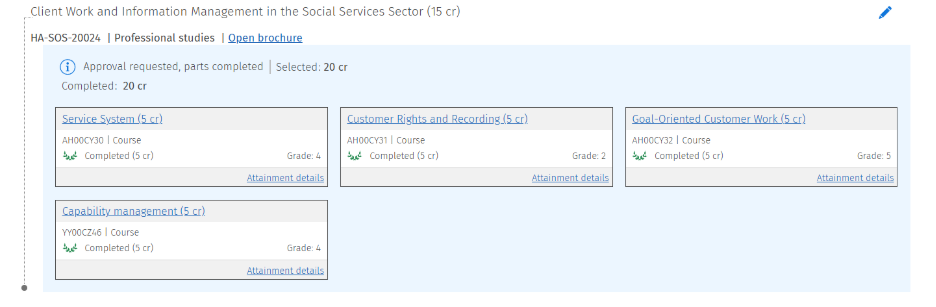
Approval requested, parts completed
Once you have completed all studies included in the study module and submitted any module content approvals, the red warnings and notifications previously shown for the module will disappear. They will be replaced by the status "Approval requested, parts completed". This status indicates that all required studies have been completed and the application has been submitted, but your tutor teacher has not yet approved it. Once the approval has been processed, the study module will be marked as completed.
Selections approved, parts completed
When an application for module content approval has been approved by your teacher tutor and all studies included in the module have been completed, the status changes to " Selections approved, parts completed ". A green leaf icon will also appear next to the study module, indicating that the module is complete. Before applying for graduation, make sure that a green leaf icon is displayed next to every study module in your study plan.