
Sisu - Opintokalenteri
Sisu’s study calendar supports the planning of studies and helps you visualize your timetable. In the calendar, you can view your studies in both weekly and monthly views.
The study calendar is based on the selections you have made in your study plan and on the timeline and registration page. It displays teaching information and events for the courses included in the most recently edited version of your study plan.
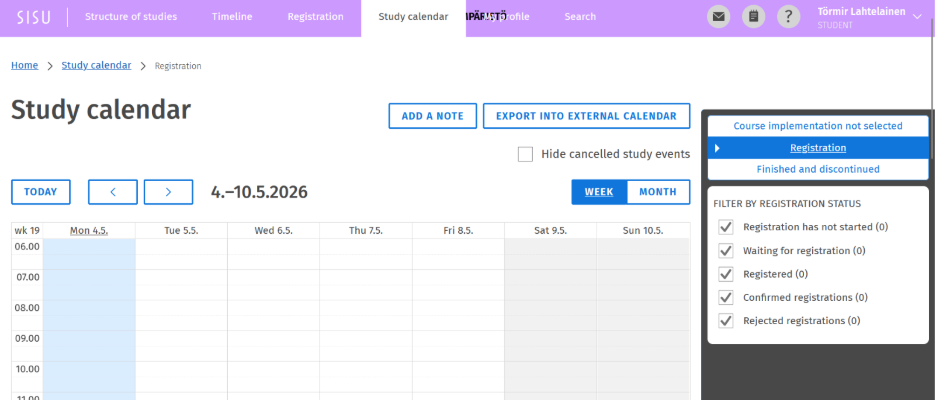
The studies you have selected in your study plan are grouped under tabs on the right side of the calendar view: Course implementation not selected, Registration and Finished and discontinued. The grouping is based on the stage and timing of your studies.
- Under the Course implementation not selected tab, you can see the courses for which you have not yet selected a teaching implementation. The courses are listed according to their scheduled timing.
- On the Registration tab, you can further specify your teaching- and calendar-related selections.
- The Finished and discontinued tab gathers information on studies that have already ended or been discontinued.
Teaching groups in the study calendar
You can choose which teaching groups and their schedules are shown in your calendar. Some events are displayed in the calendar automatically. The calendar always shows all teaching groups to which you have been accepted.
If the teaching groups that you need to see are not visible in the calendar by default, you can select them using the “Show teaching events in calendar” option. If teaching groups do not need to be selected separately (if they are the same for all participants), they are displayed in the calendar automatically.
PICTURE COMING
An course implementation may include several teaching groups, and during the registration phase the calendar may show teaching events from other groups in addition to those of your own group. You can remove the extra groups from your calendar by first selecting the relevant implementation in the calendar view and opening its details using the arrow button. You can then turn off unnecessary teaching events by deselecting them using the Show teaching events in calendar option. After this, they will no longer appear in your personal calendar.