
Turnitin Draft Coach
With Draft Coach, you can check your own texts with Turnitin in Word Online and get a similarity report. In addition to similarity checks, you can also do citation checks and grammar checks (grammar checking uses US-English grammar rules).
Draft Coach will save your work to Turnitin but does not save it to the Turnitin similarity repository/database. So, your work will not be used to match against future submissions.
Do not use Draft Coach to check texts written by others. In courses, you should still submit your work as instructed by your teacher, for example in Moodle. Draft Coach does not submit your work to the teacher.
Using Draft Coach
The first time you use Draft Coach, you must activate it in Word Online. Activation can be done according to the instructions on the Turnitin Guides website.
- NOTE! If you can't find Add-ins selection from Word Online Insert menu, the selection can be found also from Home menu (a window-looking button).
- If you do not see the “Admin Managed” section in the Add-ins menu, use the search function to look for “Draft Coach,” and make sure you add specifically the Turnitin's Draft Coach add-in, not anything else.
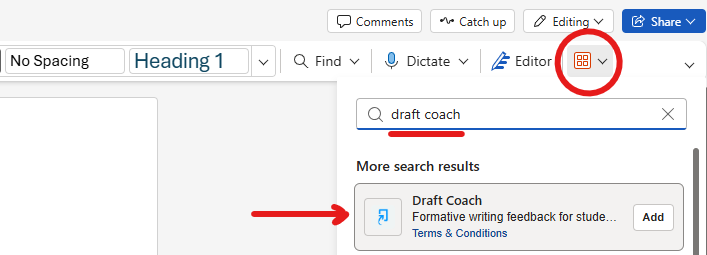
- If activation is not successful, make sure that you have allowed pop-ups in your browser settings for the page where you are using Word Online.
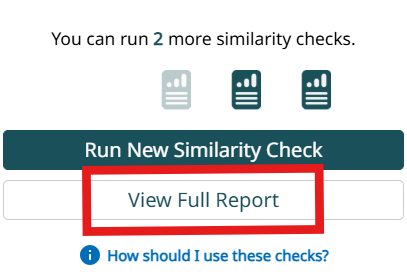
A maximum of 3 similarity checks can be made for one document.
IMPORTANT: Always open the full report using the “View Full Report” button, as the review displayed directly in Word may contain errors (e.g., the highlights of the similarities are not displayed correctly in the text).
Do not use Draft Coach to check texts written by others. In courses, you should still submit your work as instructed by your teacher, for example in Moodle. Draft Coach does not submit your work to the teacher.
Draft Coach is in use for LUT and LAB staff and students.
More information
You can find more detailed instructions for using Draft Coach on this Turnitin Guides page.