Sisu - Registration
Note: Instructions for registering for the Thesis course, Practical Training, and the Orientation to Sustainability Thinking course are provided separately below.
Registration for Implementations:
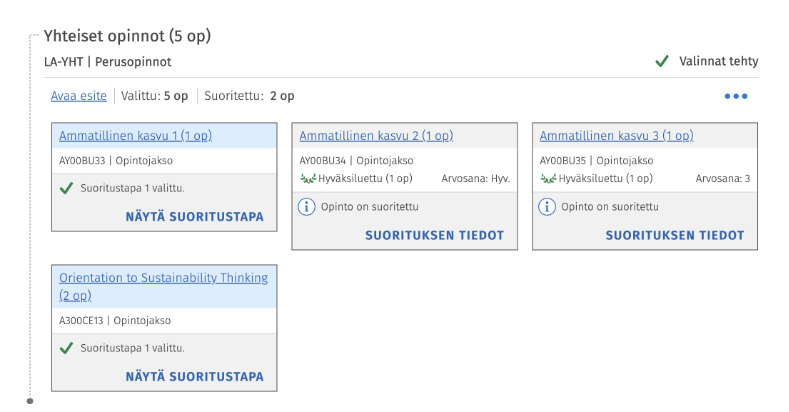
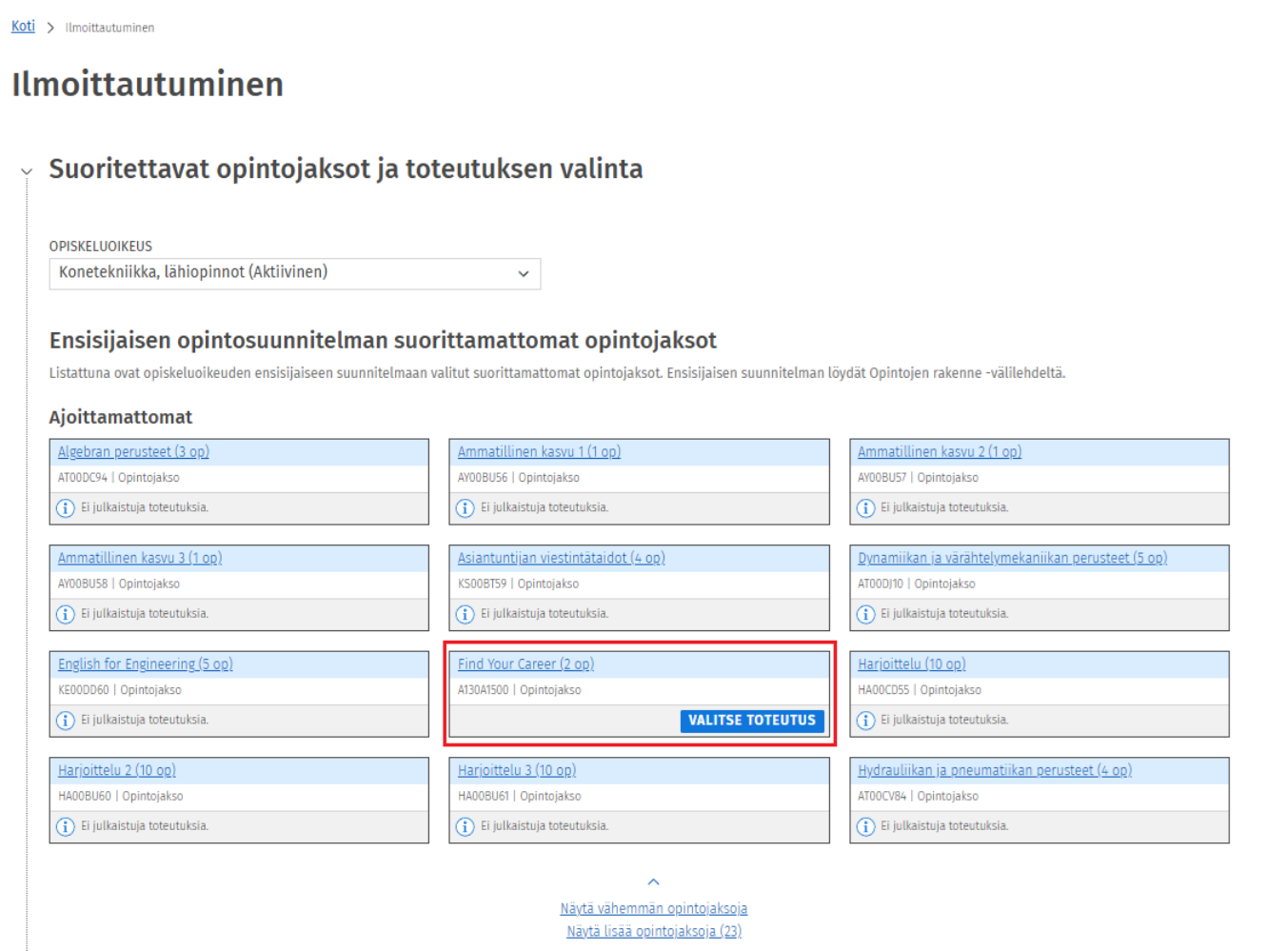
In Sisu, you must first add the course to your PRIMARY study plan on the Structure of Studies -tab. On the Structure of Studies -tab, you can see whether a completion method has already been selected for the course. If no completion method has been chosen, you can select one by clicking the Select completion method button on the right-hand side of the course. You can also view previously selected completion methods in the same way by clicking the Show completion method button.
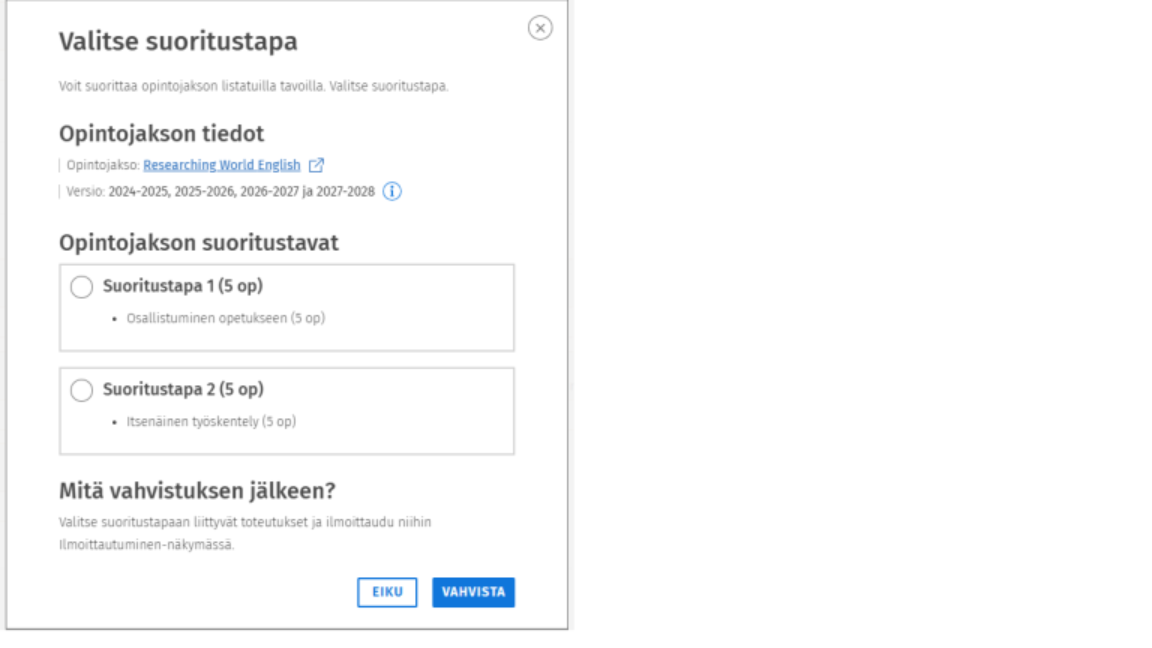
The completion method is selected from the available options for the course, after which the selection must be confirmed. Once the completion method has been selected, the course will appear on the Registration -tab. There, you can choose the teaching implementations associated with the selected completion method and registrate in them.
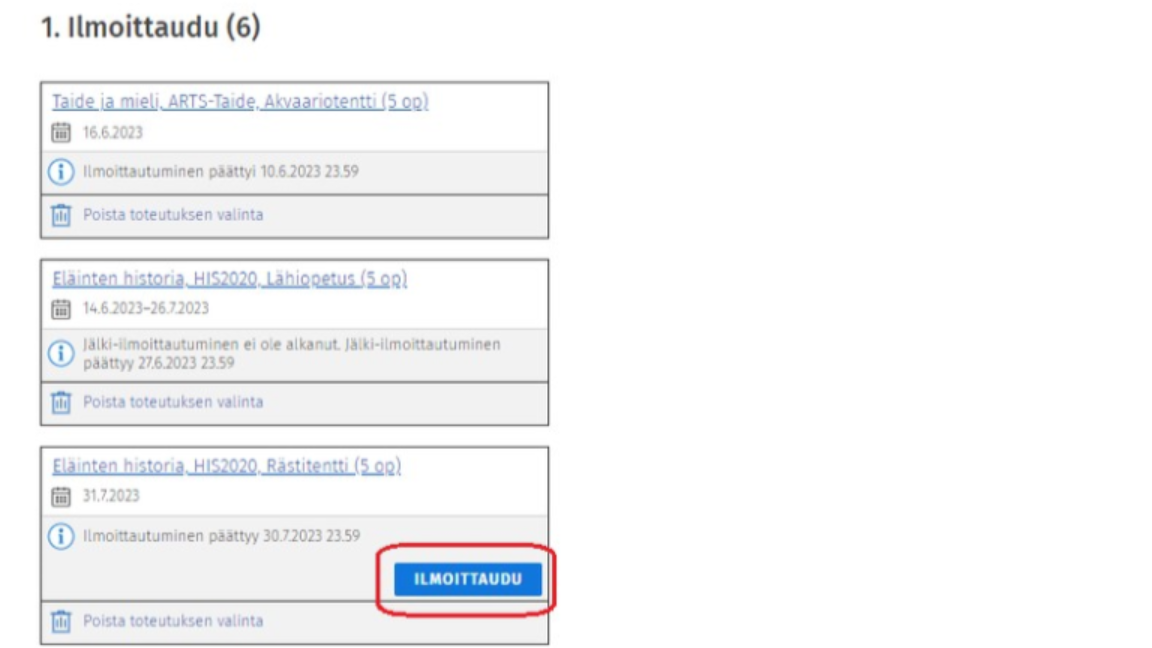
On the Registration -tab in Sisu, you can choose the implementation you wish to enroll in. The registration view provides an overview of all courses for which enrolment is currently relevant. If you have created a Timeline for you studies on the Timeline -tab, the courses are listed by study period in chronological order according to that schedule.
To enroll, go to the registration -tab, which displays all courses with an ongoing enrolment period or one that will begin soon. Click the Registration button next to the course to proceed to enrolment for the selected implementation. (Note: always choose the implementation that matches your own group code).
If you have not created a study schedule on the Timeline -tab, the courses included in your study plan will be displayed under Unscheduled studies on the registration -tab. From this view, you can select the implementation you wish to enroll in and proceed with enrolment in the same way as for scheduled courses.
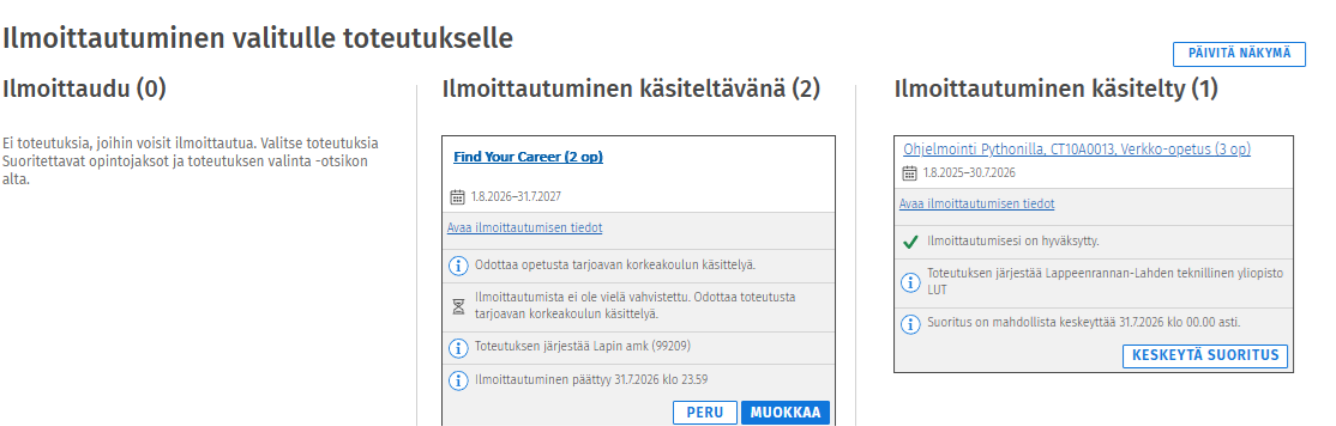
Once you have registered in an implementation, the course will move to the Registration pending column. After your enrolment has been processed, the course will appear in the Registration processed column. In this view, you can also see whether your enrolment has been accepted or rejected.