Sisu - Free edit mode
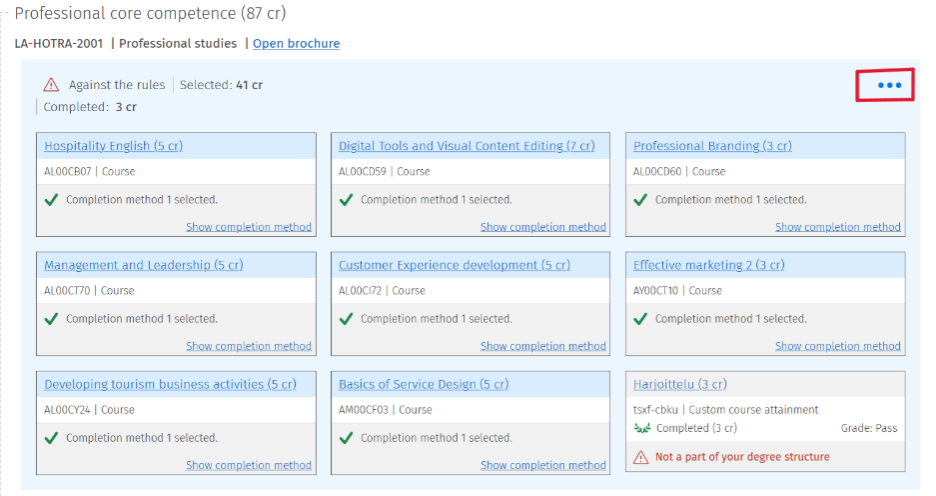
Free edit mode is used when studies cannot be placed in the correct sections of the study plan. It can be used, for example, to add completed courses, place course units in the correct locations, or make general changes to the study plan. Click the three dots next to the heading in your study plan under which you want to add a course unit or a study module.
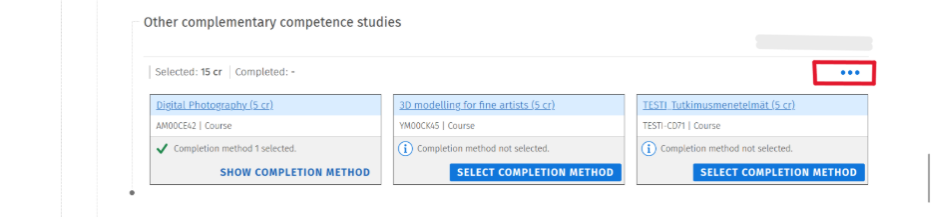
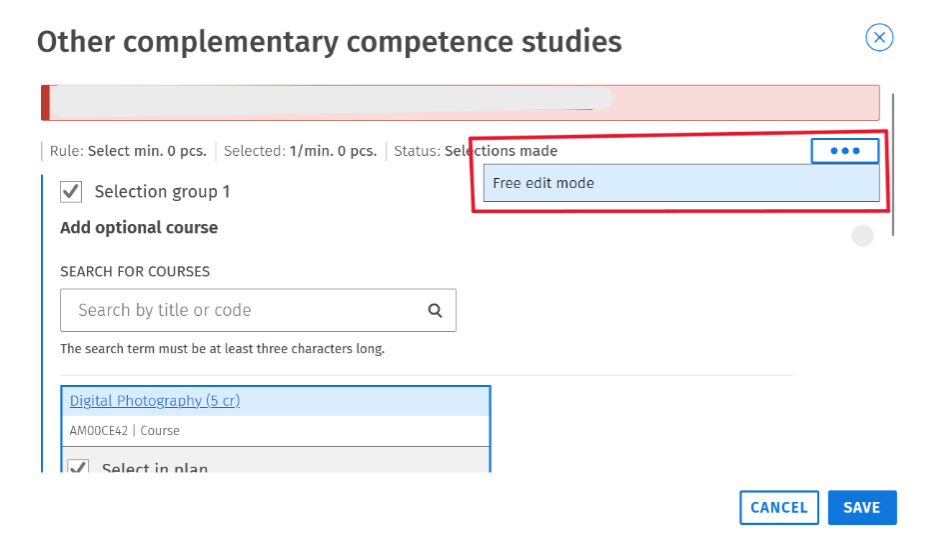
After that, click the three dots in the upper-right corner of the window once again.
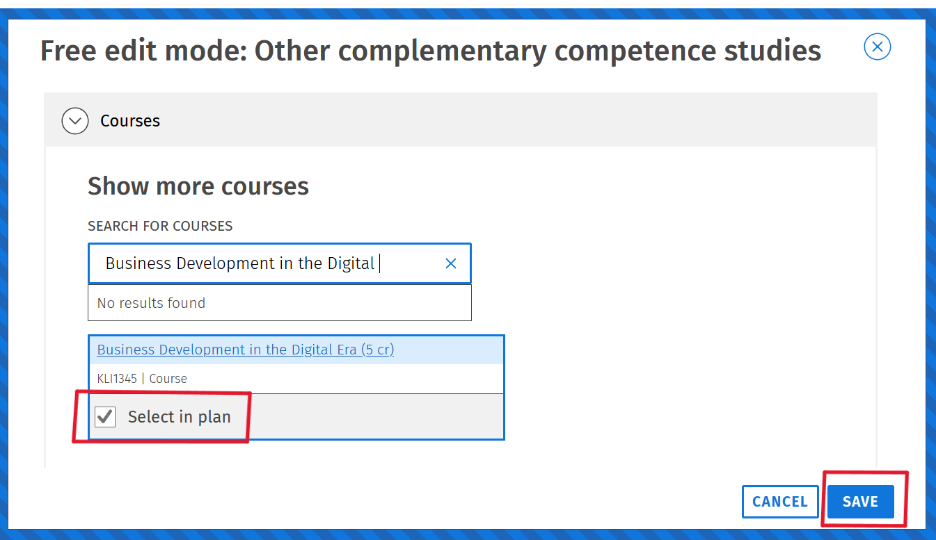
This will open the Free edit mode, where you can search for courses or study modules by their name or code. When you click the Select in plan -button and finally the Save -button next to the course or study module you want, it will be automatically added under the selected heading in your study plan.
AGAINST THE RULES, NOT A PART OF YOUR DEGREE STRUCTURE
Courses placed in the study plan, as well as those added using the free edit mode, sometimes require a separate approval for the study module. In that cases, you may see red marks in your study plan and the notification "against the rules" or “not included in your degree structure.” This does not mean that anything has been done incorrectly. It simply tells that Sisu recognizes the course as deviating from the original degree structure. In these situations, you need apply for module content approval. NOTE: Approval can only be granted starting from August 2026, so red indicators may remain in the study plan until then.
INSTRUCTIONS: In the study plan, you will see a triangle icon with an exclamation mark and the text “not included in your degree structure.” Click the three-dot menu in the top-right corner of the relevant study module.
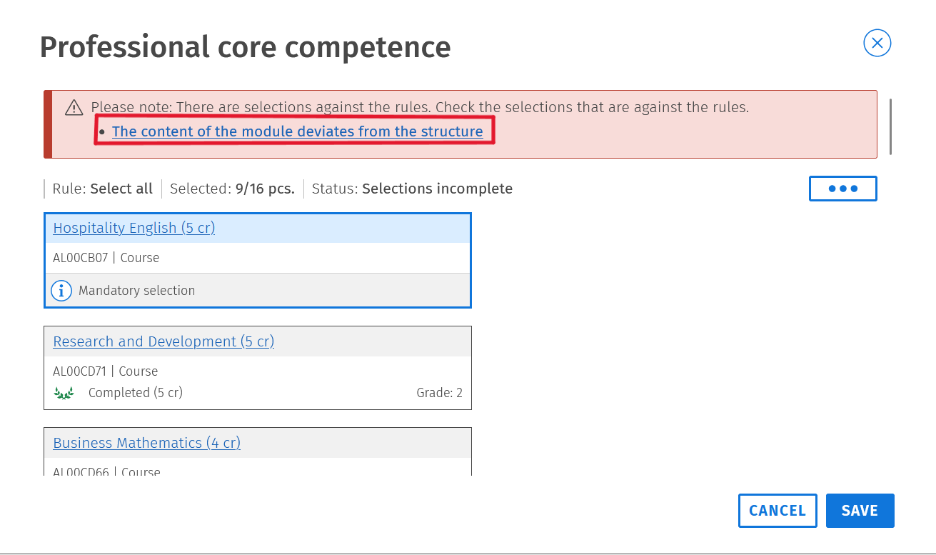
A large red box will appear at the top of the page. It contains a link titled “The content of the module deviates from the structure.” Click this link.
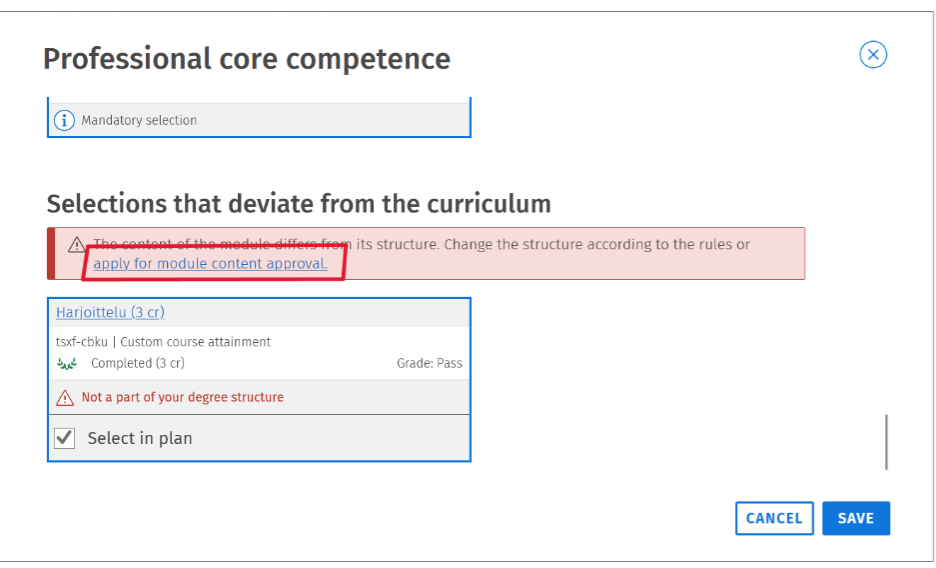
Next, you will be taken to a new view where you will see a link titled “Apply for module content approval”. Click this link.
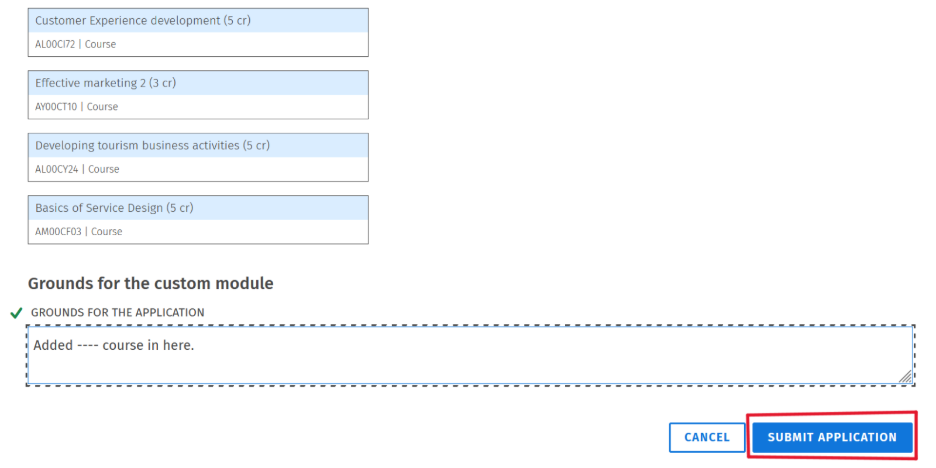
This will take you to the application form. Scroll down to the section “Grounds for the application” and write a clear explanation of why the changes has been made. Finally, submit the application by the submit application -button. The application is sent directly to your tutor teacher, who will either approve or reject it. The decision will appear in your Sisu messages. If the application is approved, the red indicators will be removed from your study plan. Please note that tutor teacher do not receive automatic notifications from Sisu about your applications. If your application is waiting for approval, please contact your tutor teacher.