Sisu - Adding completed courses to the study plan
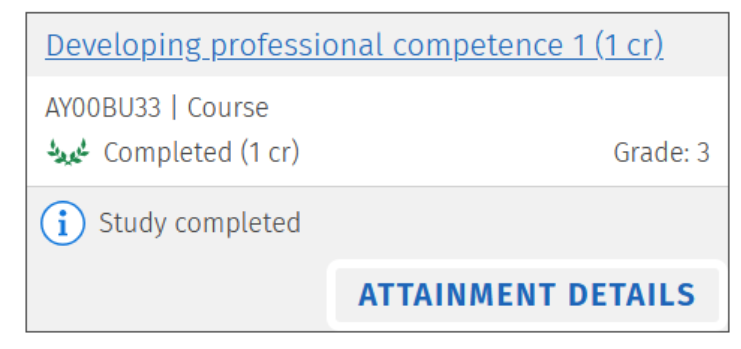
Once the course completion has been recorded in Sisu, it can be added to your study plan if it is not already there. If the course is already included in your study plan, the completion will appear automatically (Structure of studies → Study plan). For a completed course, the completion status and grade are displayed.
If the completion does not appear directly in your study plan, you can add it in two different ways. We will go through both options.
1. Adding completed studies to the study plan
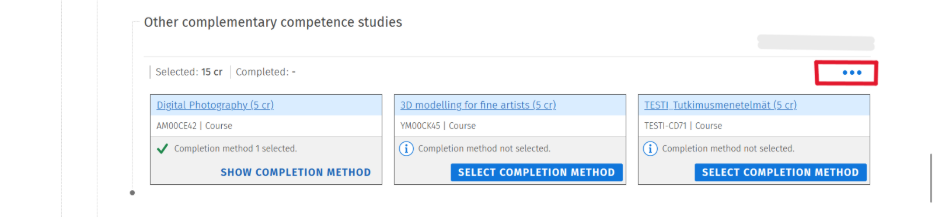
Click the three dots next to the headline in your study plan under which you want to add the missing course. This will open a window where you can search for and add missing courses.
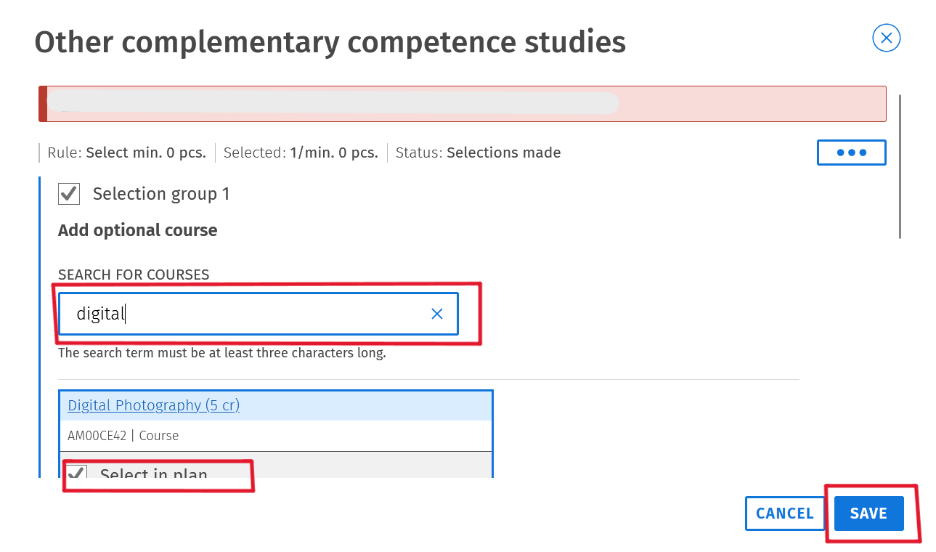
Search for the missing course by entering its title or code in the search field, and then select the correct course from the search results. Next, click the Select in plan -button next to the course and finally click Save -button, and it will be automatically added to the study plan.
2. Adding completed studies to the study plan in Free edit mode
Click the three dots next to the heading in your study plan under which you want to add the missing course or study module.
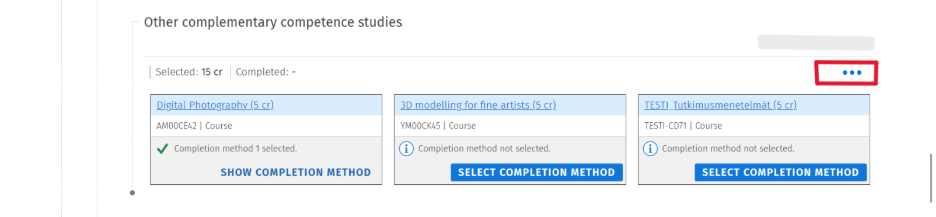
After that, click the three dots in the upper-right corner of the window once again and then click Free edit mode.
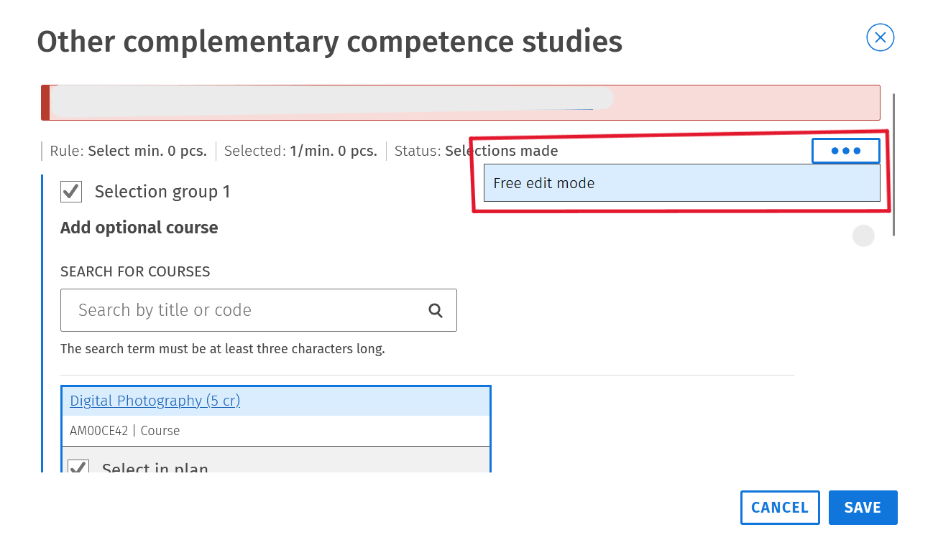
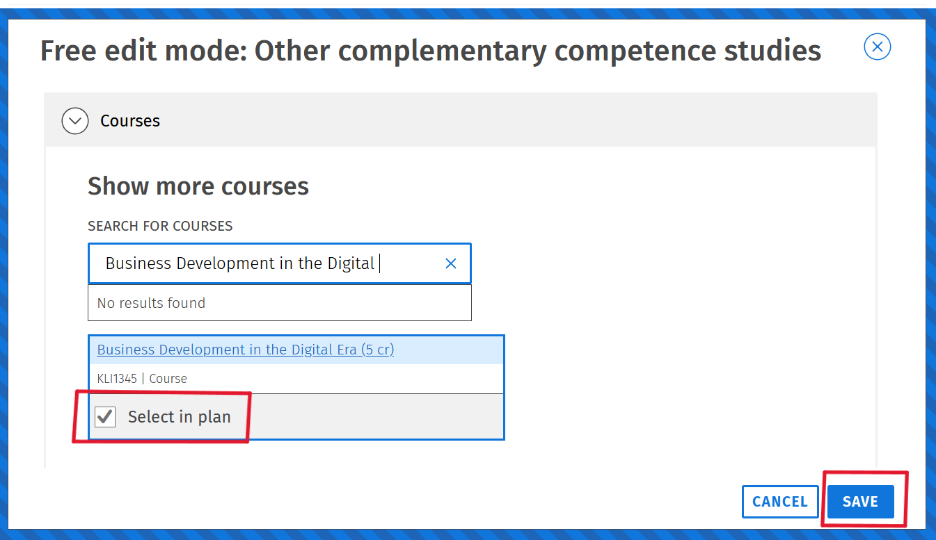
This will open the Free edit mode, where you can search for courses or study modules by their name or code. When you click the Select in plan -button and finally the Save -button next to the course or study module you want, it will be automatically added under the selected heading.