
PSP Inspection - Peppi
In the Inspection tab you can see an up-to-date structured PSP. The PSP is based on the curriculum of a degree programme.

Filtering the PSP
- Study type: Filter based on the compulsion of the course (compulsory, alternative, elective)
- Study status: Filter based on the status of the course (completed, incomplete, enrolled, enrollment starting)
- Timing: Filter based on the timing of the course (academic years, semesters, periods)
Open/close structure
- The entire structure: Select Open all / Close all
- Individual module: Click the arrow on the left side of the module name to open or close the structure of that module
Info box
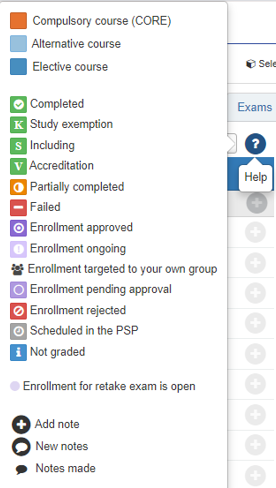
- Click the questionmark icon above the PSP to see the explanations for different colours and symbols in your PSP. You can also see an explanation by hovering your mouse above a symbol.
Compulsion of a study unit
- The colours in front of a study unit name present the compulsion of a unit. Find the explanation for each colour in the info box or hover your mouse above the colour.
Study unit status
- You can find the icon stating the status of a unit on the left side of the unit name. Find explanations for each icon in the info box or hover your mouse above the icon.
Viewing the content of a module or a unit
- Click the name of a module or unit to open a pop-up window describing the content of that module
- Close the pop-up window by pressing Esc in your keyboard or by clicking the X or Cancel buttons.
The amount of credits required per module
- See the required amount of credit points per module on the right side of the name of the module
Download a Transcript of Records
- Click the Download Transcript (PDF) button to dowloand a PDF version of your completed studies.
Status box
- View the amount of credits selected to your PSP and the amount of credits required for your degree,
- weighted average and
- the amount of credits compeleted
Notices
- See here e.g. if enrollments are ongoing for units in your PSP and a list of your latest completed studies.
Send your PSP for comments or approval
- You can send your draft PSP to your teacher tutor for comments or approval. Click Send for comments or Send for approval. On the recipient box, write your teacher tutor as recipients, and then, write your message in an appearing window and Send.
- Approving a PSP creates a new version of your PSP that the student can no longer edit.
Select version of PSP
- After getting your PSP approved, you will have a new draft version of your PSP that you can continue to edit. Click the select version of PSP to choose a draft version of your PSP
Add notes to units or modules
- You may add notes to courses or modules. Click the plus icon or the speech bubble at the end of a study unit or module name.
- The plus icon is visible when a unit or a module has no previous notes,
- the speech bubble is visible when the unit or module already has notes
- Fill in the fields and Click send. The notes are visible to you and to your tutor teacher.
- If you do not fill the recipient field then the note is only visible to you.
