
Zoom etiquette
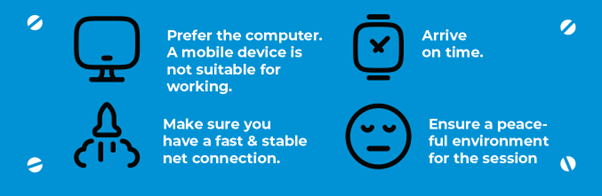
Joining Zoom: Use the link you received to join the session. If you don’t have the Zoom app, download it from https://zoom.us/download. If you can’t install the Zoom app, you can participate using a web browser. Always use your full name when joining and set a profile picture for better recognition.
Video and audio: Log in with video and audio connected. Test the functionality of your video and sound on the test page: https://zoom.us/test (you can’t test presenting content here).
Tools: Look for the toolbar at the bottom of the Zoom window. To share your screen for a presentation, use the green Share screen -button. Keep the Chat window open during the session.
Group work: Group activities will be conducted in Breakout rooms. You will receive an invitation to join these rooms on Zoom. Keep your video and audio on during group work. You will automatically return to the main session when the group activity ends.
Preparing to present: If you are using Zoom for the first time, your computer may ask for permissions. When presenting, use presentation mode in your presentation software and ensure your audio and video are working. Test all these functionalities before the session. Speak clearly and calmly during your presentation.
Interaction: Be active during the session. You can ask to speak by raising your hand, use reactions, and ask questions in the chat. If you encounter any problems, send a chat message to the teacher.